

7: Adding User Accounts
7.1: Password Authentication
Meteor already comes with a basic authentication and account management system out of the box, so you only need to add the accounts-password to enable username and password authentication:
meteor add accounts-passwordThere are many more authentication methods supported. You can read more about the accounts system here.
We also recommend you to install bcrypt node module, otherwise, you are going to see a warning saying that you are using a pure-Javascript implementation of it.
meteor npm install --save bcryptYou should always use
meteor npminstead of onlynpmso you always use thenpmversion pinned by Meteor, this helps you to avoid problems due to different versions of npm installing different modules.
7.2: Create User Account
Now you can create a default user for our app, we are going to use meteorite as username, we just create a new user on server startup if we didn't find it in the database.
import { Meteor } from 'meteor/meteor';
import { Accounts } from 'meteor/accounts-base';
import { TasksCollection } from '/imports/api/TasksCollection';
import "../imports/api/TasksPublications";
import "../imports/api/TasksMethods";

const SEED_USERNAME = 'meteorite';
const SEED_PASSWORD = 'password';

Meteor.startup(async () => {
  if (!(await Accounts.findUserByUsername(SEED_USERNAME))) {
    await Accounts.createUser({
      username: SEED_USERNAME,
      password: SEED_PASSWORD,
    });
  }

  ...
});
You should not see anything different in your app UI yet.
7.3: Login Form
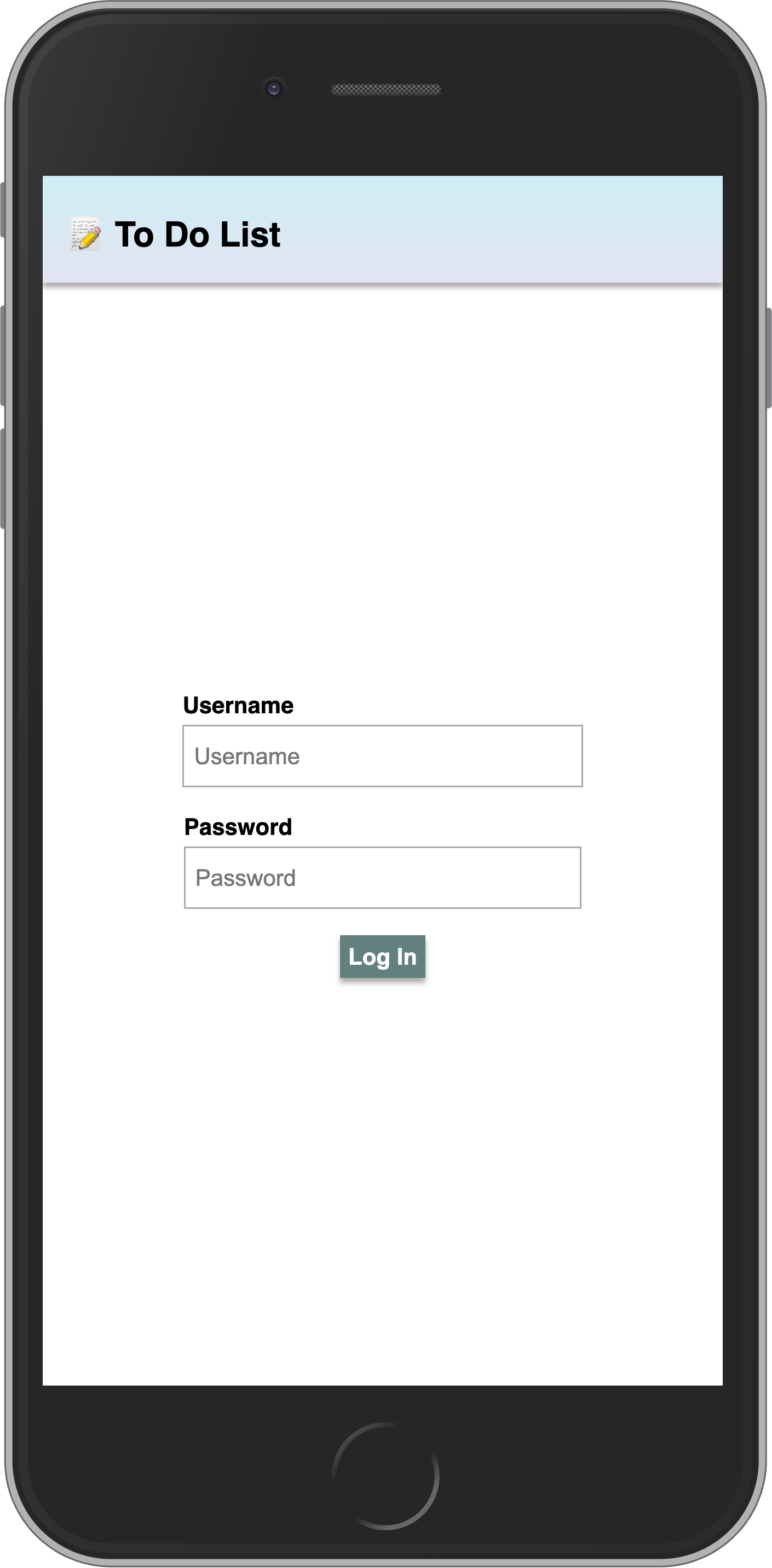
You need to provide a way for the users to input the credentials and authenticate, for that we need a form.
Our login form will be simple, with just two fields (username and password) and a button. You should use Meteor.loginWithPassword(username, password); to authenticate your user with the provided inputs.
Create a new component Login.jsx in imports/ui/:
import { createSignal } from "solid-js";
import { Meteor } from "meteor/meteor";

export const Login = () => {
  const [username, setUsername] = createSignal('');
  const [password, setPassword] = createSignal('');

  const login = async (event) => {
    event.preventDefault();
    await Meteor.loginWithPassword(username(), password());
  };

  return (
    <form class="login-form" onSubmit={login}>
      <div>
        <label for="username">Username</label>
        <input
          type="text"
          placeholder="Username"
          name="username"
          required
          value={username()}
          onInput={(e) => setUsername(e.currentTarget.value)}
        />
      </div>

      <div>
        <label for="password">Password</label>
        <input
          type="password"
          placeholder="Password"
          name="password"
          required
          value={password()}
          onInput={(e) => setPassword(e.currentTarget.value)}
        />
      </div>
      <div>
        <button type="submit">Log In</button>
      </div>
    </form>
  );
};
Be sure also to import the login form in App.jsx.
import { ReactiveVar } from 'meteor/reactive-var';
import { createSignal, For, Show, createEffect } from "solid-js";
import { Meteor } from "meteor/meteor";
import { Tracker } from "meteor/tracker";
import { TasksCollection } from "../api/TasksCollection";
import { Task } from "./Task.jsx";
import { Login } from "./Login.jsx";

// ... rest of the script
Ok, now you have a form, let's use it.
7.4: Require Authentication
Our app should only allow an authenticated user to access its task management features.
We can accomplish that by rendering the Login component when we don’t have an authenticated user. Otherwise, we render the form, filter, and list.
To achieve this, we will use a conditional <Show> in App.jsx:
// ... other imports and code

const [currentUser, setCurrentUser] = createSignal(Meteor.user()); // Reactive current user //
Tracker.autorun(() => {
  setCurrentUser(Meteor.user());
});

// ... rest of script

return (
  <div class="app">
    <header>
      <div class="app-bar">
        <div class="app-header">
          <h1>📝️ To Do List {incompleteCount() > 0 ? `(${incompleteCount()})` : ''}</h1>
        </div>
      </div>
    </header>

    <div class="main">
      <Show
        when={currentUser()}
        fallback={<Login />}
      > // [!code highlight]
        <form class="task-form" onSubmit={addTask}>
          <input
            type="text"
            placeholder="Type to add new tasks"
            value={newTask()}
            onInput={(e) => setNewTask(e.currentTarget.value)}
          />
          <button type="submit">Add Task</button>
        </form>

        <div class="filter">
          <button onClick={toggleHideCompleted}>
            <Show
              when={hideCompleted()}
              fallback="Hide Completed"
            >
              Show All
            </Show>
          </button>
        </div>

        <Show
          when={isReady()}
          fallback={<div>Loading ...</div>}
        >
          <ul class="tasks">
            <For each={tasks()}>
              {(task) => (
                <Task task={task} />
              )}
            </For>
          </ul>
        </Show>
      </Show> // [!code highlight]
    </div>
  </div>
);
As you can see, if the user is logged in, we render the whole app (currentUser is truthy). Otherwise, we render the Login component.
7.5: Login Form style
Ok, let's style the login form now:
.login-form {
  display: flex;
  flex-direction: column;
  height: 100%;

  justify-content: center;
  align-items: center;
}

.login-form > div {
  margin: 8px;
}

.login-form > div > label {
  font-weight: bold;
}

.login-form > div > input {
  flex-grow: 1;
  box-sizing: border-box;
  padding: 10px 6px;
  background: transparent;
  border: 1px solid #aaa;
  width: 100%;
  font-size: 1em;
  margin-right: 16px;
  margin-top: 4px;
}

.login-form > div > input:focus {
  outline: 0;
}

.login-form > div > button {
  background-color: #62807e;
}
Now your login form should be centralized and beautiful.
7.6: Server startup
Every task should have an owner from now on. So go to your database, as you learned before, and remove all the tasks from there:
db.tasks.remove({});
Change your server/main.js to add the seed tasks using your meteorite user as owner.
Make sure you restart the server after this change so Meteor.startup block will run again. This is probably going to happen automatically anyway as you are going to make changes in the server side code.
...

  const user = await Accounts.findUserByUsername(SEED_USERNAME);

  if ((await TasksCollection.find().countAsync()) === 0) {
    [
      "First Task",
      "Second Task",
      "Third Task",
      "Fourth Task",
      "Fifth Task",
      "Sixth Task",
      "Seventh Task",
    ].forEach((taskName) => {
      Meteor.callAsync("tasks.insert", {
        text: taskName,
        createdAt: new Date(),
        userId: user._id
      });
    });
  }

...
See that we are using a new field called userId with our user _id field, we are also setting createdAt field.
7.7: Task owner
First, let's change our publication to publish the tasks only for the currently logged user. This is important for security, as you send only data that belongs to that user.
import { Meteor } from "meteor/meteor";
import { TasksCollection } from "./TasksCollection";

Meteor.publish("tasks", function () {
  let result = this.ready();
  const userId = this.userId;
  if (userId) {
    result = TasksCollection.find({ userId });
  }

  return result;
});
Now let's check if we have a currentUser before trying to fetch any data. Update the reactive tasks and incompleteCount to only run if logged in:
// ... other imports and code

  Tracker.autorun(async () => {
    setIsReady(subscription.ready());
    if (!Meteor.userId()) { // // Skip if not logged in
      setTasks([]);
      return;
    }
    // Use ReactiveVar in the query for Tracker reactivity
    const query = hideCompletedVar.get() ? { isChecked: { $ne: true } } : {};
    setTasks(await TasksCollection.find(query, { sort: { createdAt: -1, _id: -1 } }).fetchAsync());
  });

  // Reactive incomplete count
  const [incompleteCount, setIncompleteCount] = createSignal(0);
  Tracker.autorun(async () => {
    if (!Meteor.userId()) { // // Skip if not logged in
      setIncompleteCount(0);
      return;
    }
    setIncompleteCount(await TasksCollection.find({ isChecked: { $ne: true } }).countAsync());
  });

// ... rest of component
Also, update the tasks.insert method to include the field userId when creating a new task:
...
Meteor.methods({
  "tasks.insert"(doc) {
    const insertDoc = { ...doc };
    if (!('userId' in insertDoc)) {
      insertDoc.userId = this.userId;
    }
    return TasksCollection.insertAsync(insertDoc);
  },
...
7.8: Log out
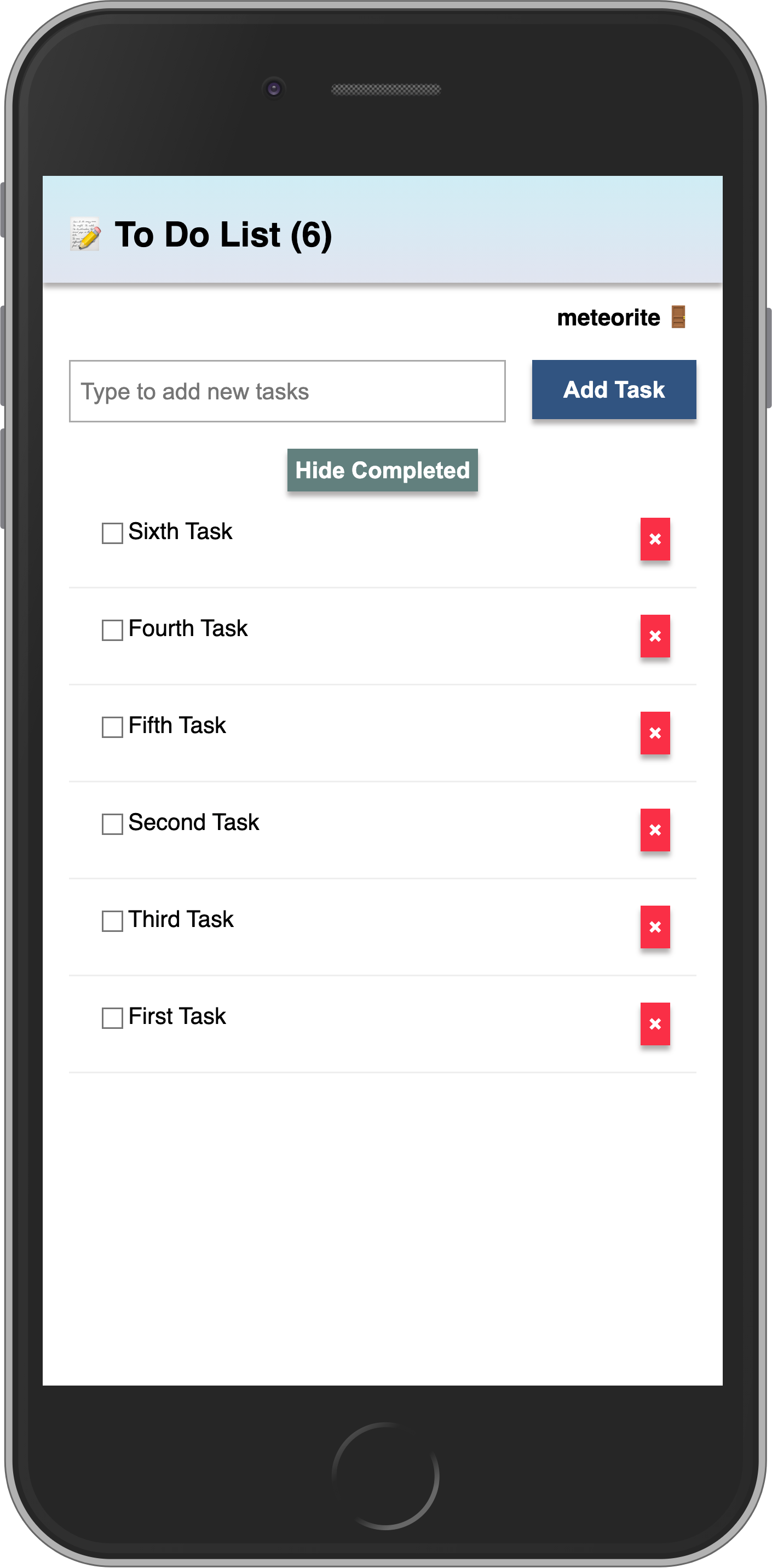
We can also organize our tasks by showing the owner’s username below our app bar. Let’s add a new div where the user can click and log out from the app:
...

      <div class="main">
        <Show
          when={currentUser()}
          fallback={<Login />}
        >
          <div class="user" onClick={() => Meteor.logout()}> // [!code highlight]
            {currentUser()?.username} 🚪 // [!code highlight]
          </div> // [!code highlight]

      ...
Remember to style your username as well.
.user {
  display: flex;

  align-self: flex-end;

  margin: 8px 16px 0;
  font-weight: bold;
  cursor: pointer;
}
Phew! You have done quite a lot in this step. Authenticated the user, set the user in the tasks, and provided a way for the user to log out.
Your app should look like this:
In the next step, we are going to learn how to deploy your app!