

1: Creating the app
1.1: Install Meteor
First, we need to install Meteor by following this installation guide.
1.2: Create Meteor Project
The easiest way to setup Meteor with Solid is by using the command meteor create with the option --solid and your project name:
meteor create --solid simple-todos-solidMeteor will create all the necessary files for you. With --solid option, Meteor generates a project using Solid and Rspack as the bundler, and this is the approach walked through in this tutorial. Using the Rspack bundler is the default convention in Meteor 3.4+, as it improves dev speed, enables more build features, and provides better control over bundle size and configuration.
We provide the final app for both the Rspack and Meteor bundlers. This guide follows the Rspack version and reaches the same final state. The Meteor bundler version is for those who prefer the legacy bundler.
INFO
You can find the final version of this app on GitHub using the Rspack bundler or the Meteor bundler.
The files located in the client directory are setting up your client side (web), you can see for example client/main.html where Meteor is rendering your App main component into the HTML.
Also, check the server directory where Meteor is setting up the server side (Node.js), you can see the server/main.js which would be a good place to initialize your MongoDB database with some data. You don't need to install MongoDB as Meteor provides an embedded version of it ready for you to use.
You can now run your Meteor app using:
meteorDon't worry, Meteor will keep your app in sync with all your changes from now on.
Take a quick look at all the files created by Meteor, you don't need to understand them now but it's good to know where they are.
Your Solid code will be located inside the imports/ui directory, and the App.jsx file will be the root component of your Solid To-do app.
1.3: Create Tasks
To start working on our todo list app, let’s replace the code of the default starter app with the code below. From there, we’ll talk about what it does.
First, let’s simplify our HTML entry point like so:
<head>
  <title>Simple todo</title>
  <meta name="viewport" content="width=device-width, initial-scale=1.0">
</head>

<body>
  <noscript>You need to enable JavaScript to run this app.</noscript>
  <div id="root"></div>
</body>
The imports/ui/main.jsx file should import and render the main Solid component (note: this is referenced via client/main.js which imports it):
/* @refresh reload */
import { render } from 'solid-js/web';
import { App } from './App';
import { Meteor } from "meteor/meteor";
import './main.css';

Meteor.startup(() => {
  render(() => <App/>, document.getElementById('root'));
});import '../imports/ui/main';Inside the imports/ui folder let us modify App.jsx to display a header and a list of tasks:
import { For } from "solid-js";

export const App = () => {
  const tasks = [
    { text: 'This is task 1' },
    { text: 'This is task 2' },
    { text: 'This is task 3' },
  ];

  return (
    <div class="container">
      <header>
        <h1>Todo List</h1>
      </header>

      <ul>
        <For each={tasks}>
          {(task) => (
            <li>{task.text}</li>
          )}
        </For>
      </ul>
    </div>
  );
};
We just modified our main Solid component App.jsx, which will be rendered into the #root div in the body. It shows a header and a list of tasks. For now, we're using static sample data to display the tasks.
You can now delete these starter files from your project as we don't need them: Info.jsx, Hello.jsx
1.4: View Sample Tasks
As you are not connecting to your server and database yet, we’ve defined some sample data directly in App.jsx to render a list of tasks.
At this point meteor should be running on port 3000 so you can visit the running app and see your list with three tasks displayed at http://localhost:3000/ - but if meteor is not running, go to your terminal and move to the top directory of your project and type meteor then press return to launch the app.
All right! Let’s find out what all these bits of code are doing!
1.5: Rendering Data
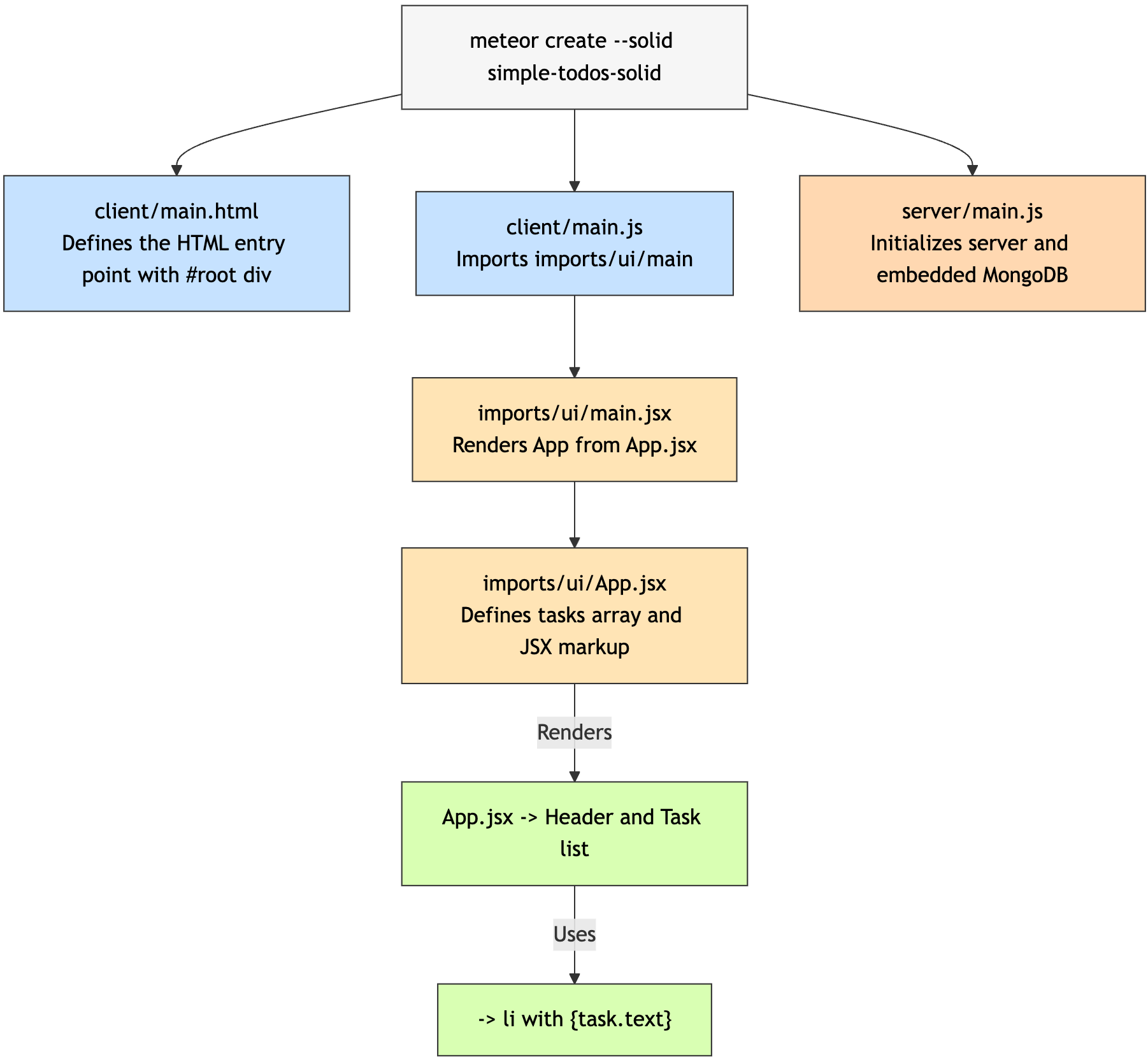
In Solid with Meteor, your main entry point is client/main.js, which imports imports/ui/main.jsx to render your root Solid component App.jsx to a target element in the HTML like <div id="root"></div> using Solid's render function.
Solid components are defined in .jsx files using JSX syntax, which can include JavaScript logic, imports, and reactive primitives. The JSX markup can use Solid's control flow components, such as <For> for looping and {expression} for interpolating data.
You can define data and logic directly in the component function. In the code above, we defined a tasks array directly in the component. Inside the markup, we use <For each={tasks}> to iterate over the array and display each task's text property using {task.text}.
For Meteor-specific reactivity (like subscriptions and collections), Solid in Meteor integrates with Meteor's Tracker using hooks like effects or custom trackers. We'll cover that in later steps.
1.6: Mobile Look
Let’s see how your app is looking on mobile. You can simulate a mobile environment by right clicking your app in the browser (we are assuming you are using Google Chrome, as it is the most popular browser) and then inspect, this will open a new window inside your browser called Dev Tools. In the Dev Tools you have a small icon showing a Mobile device and a Tablet:
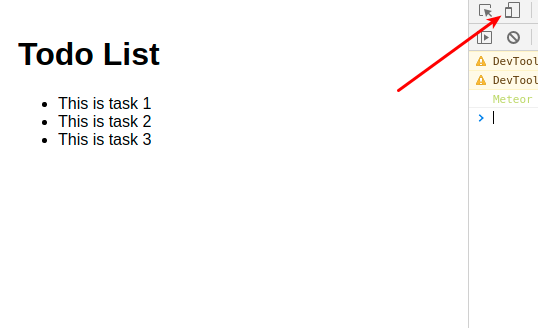
Click on it and then select the phone that you want to simulate and in the top nav bar.
You can also check your app in your personal cellphone. To do so, connect to your App using your local IP in the navigation browser of your mobile browser.
This command should print your local IP for you on Unix systems
ifconfig | grep "inet " | grep -Fv 127.0.0.1 | awk '{print $2}'On Microsoft Windows try this in a command prompt
ipconfig | findstr "IPv4 Address"
You should see the following:
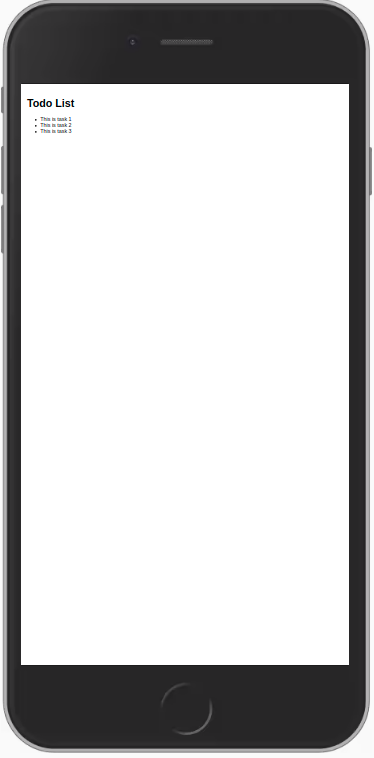
As you can see, everything is small, as we are not adjusting the view port for mobile devices. You can fix this and other similar issues by adding these lines to your client/main.html file, inside the head tag, after the title.
<head>
  <title>Simple todo</title>
  <meta charset="utf-8"/>
  <meta http-equiv="x-ua-compatible" content="ie=edge"/>
  <meta
      name="viewport"
      content="width=device-width, height=device-height, viewport-fit=cover, initial-scale=1, maximum-scale=1, minimum-scale=1, user-scalable=no"
  />
  <meta name="mobile-web-app-capable" content="yes"/>
  <meta name="apple-mobile-web-app-capable" content="yes"/>
</head>
...
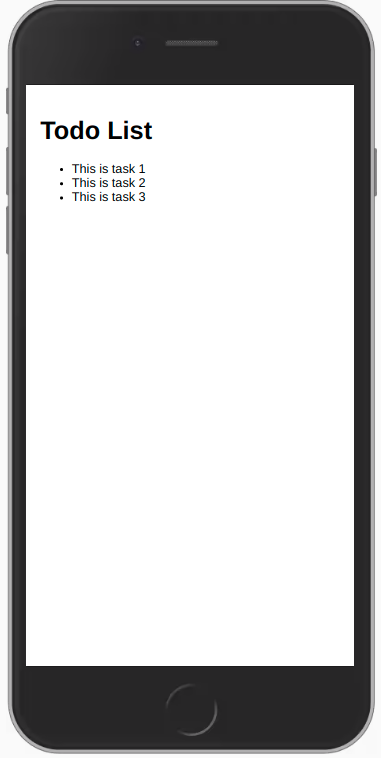
Now your app should scale properly on mobile devices and look like this:
1.7: Hot Module Replacement
Starting from Meteor 3.4+, new apps use Rspack by default. It includes built-in Hot Module Replacement (HMR) and solid-refresh. This lets you see changes as you make them, even inside Solid components, without losing component state.
If you use a previous Meteor version, you can opt in to the hot-module-replacement which is already added for you. This package updates the javascript modules in a running app that were modified during a rebuild. Reduces the feedback cycle while developing, so you can view and test changes quicker (it even updates the app before the build has finished). You are also not going to lose the state, your app code will be updated, and your state will be the same.
WARNING
hot-module-replacement can still be added to a Meteor app when using Meteor-Rspack with the rspack Atmosphere package enabled (3.4+). It acts as the HMR strategy for modules that are still compiled by the Meteor bundler, such as Atmosphere packages or any files explicitly kept on the Meteor bundler side.
By default, when using Solid with Meteor in previous versions, reactivity is handled by integrating Solid's fine-grained signals and effects with Meteor's Tracker system. This allows real-time updates of the user's screen as data changes in the database without them having to manually refresh. You can achieve this using Tracker.autorun combined with Solid's createEffect or signals for seamless reactivity.
You can read more about packages here.
You can also opt in to add the package dev-error-overlay when using previous versions, so you can see the errors in your web browser, so you can see the errors in your web browser.
meteor add dev-error-overlayYou can try to make some mistakes and then you are going to see the errors in the browser and not only in the console.
In the next step we are going to work with our MongoDB database to be able to store our tasks.