

2: Collections
Meteor already sets up MongoDB for you. In order to use our database, we need to create a collection, which is where we will store our documents, in our case our tasks.
You can read more about collections here.
In this step we will implement all the necessary code to have a basic collection for our tasks up and running.
2.1: Create Tasks Collection
Create a new directory in imports/api if it doesn't exist already. We can create a new collection to store our tasks by creating a new file at imports/api/TasksCollection.js which instantiates a new Mongo collection and exports it.
import { Mongo } from "meteor/mongo";

export const TasksCollection = new Mongo.Collection("tasks");
Notice that we stored the file in the imports/api directory, which is a place to store API-related code, like publications and methods. You can name this folder as you want, this is just a choice.
You can read more about app structure and imports/exports here.
2.2: Initialize Tasks Collection
For our collection to work, you need to import it in the server so it sets some plumbing up.
You can either use import "/imports/api/TasksCollection" or import { TasksCollection } from "/imports/api/TasksCollection" if you are going to use on the same file, but make sure it is imported.
Now it is easy to check if there is data or not in our collection, otherwise, we can insert some sample data easily as well.
You don't need to keep the old content of server/main.js.
import { Meteor } from "meteor/meteor";
import { TasksCollection } from "/imports/api/TasksCollection";

const insertTask = (taskText) =>
  TasksCollection.insertAsync({ text: taskText });

Meteor.startup(async () => {
  if ((await TasksCollection.find().countAsync()) === 0) {
    [
      "First Task",
      "Second Task",
      "Third Task",
      "Fourth Task",
      "Fifth Task",
      "Sixth Task",
      "Seventh Task",
    ].forEach(insertTask);
  }
});
So you are importing the TasksCollection and adding a few tasks to it iterating over an array of strings and for each string calling a function to insert this string as our text field in our task document.
2.3: Render Tasks Collection
Now comes the fun part, you will render the tasks with Blaze. That will be pretty simple.
In your App.js file, import the TasksCollection file and, instead of returning a static array, return the tasks saved in the database:
import { Template } from 'meteor/templating';
import { TasksCollection } from "../api/TasksCollection";
import './App.html';

Template.mainContainer.helpers({
  tasks() {
    return TasksCollection.find({});
  },
});
But wait! Something is missing. If you run your app now, you'll see that you don't render any tasks.
That's because we need to publish our data to the client.
For more information on Publications/Subscriptions, please check our docs.
Meteor doesn't need REST calls. It instead relies on synchronizing the MongoDB on the server with a MiniMongoDB on the client. It does this by first publishing collections on the server and then subscribing to them on the client.
First, create a publication for our tasks:
import { Meteor } from "meteor/meteor";
import { TasksCollection } from "./TasksCollection";

Meteor.publish("tasks", function () {
  return TasksCollection.find();
});
Now, we need to import this file in our server:
...
import { TasksCollection } from '/imports/api/TasksCollection';

import "../imports/api/TasksPublications";

const insertTask = taskText => TasksCollection.insertAsync({ text: taskText });
...
The only thing left is subscribe to this publication:
...

Template.mainContainer.onCreated(function mainContainerOnCreated() {
  Meteor.subscribe('tasks');
});

...
See how your app should look like now:
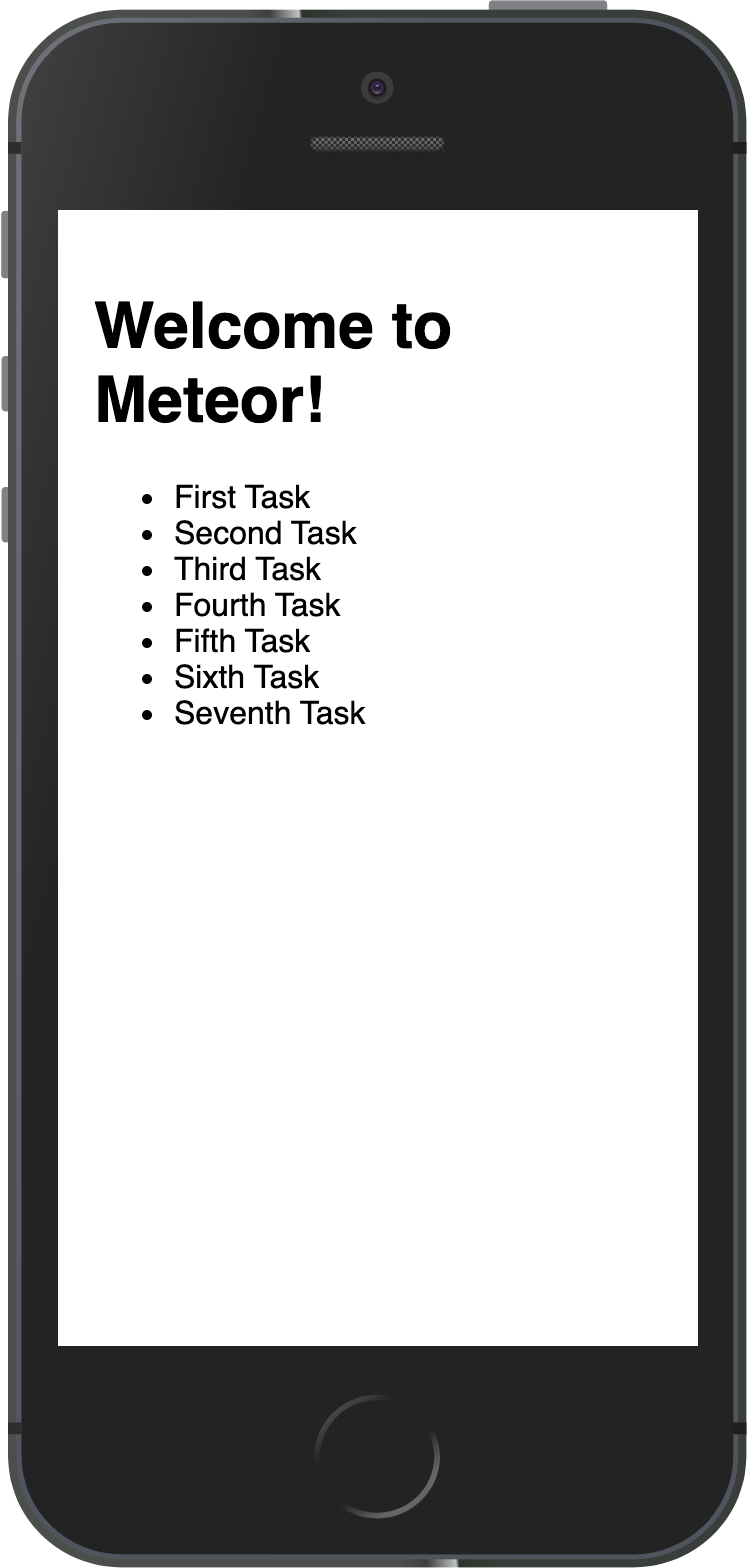
You can change your data on MongoDB in the server and your app will react and re-render for you.
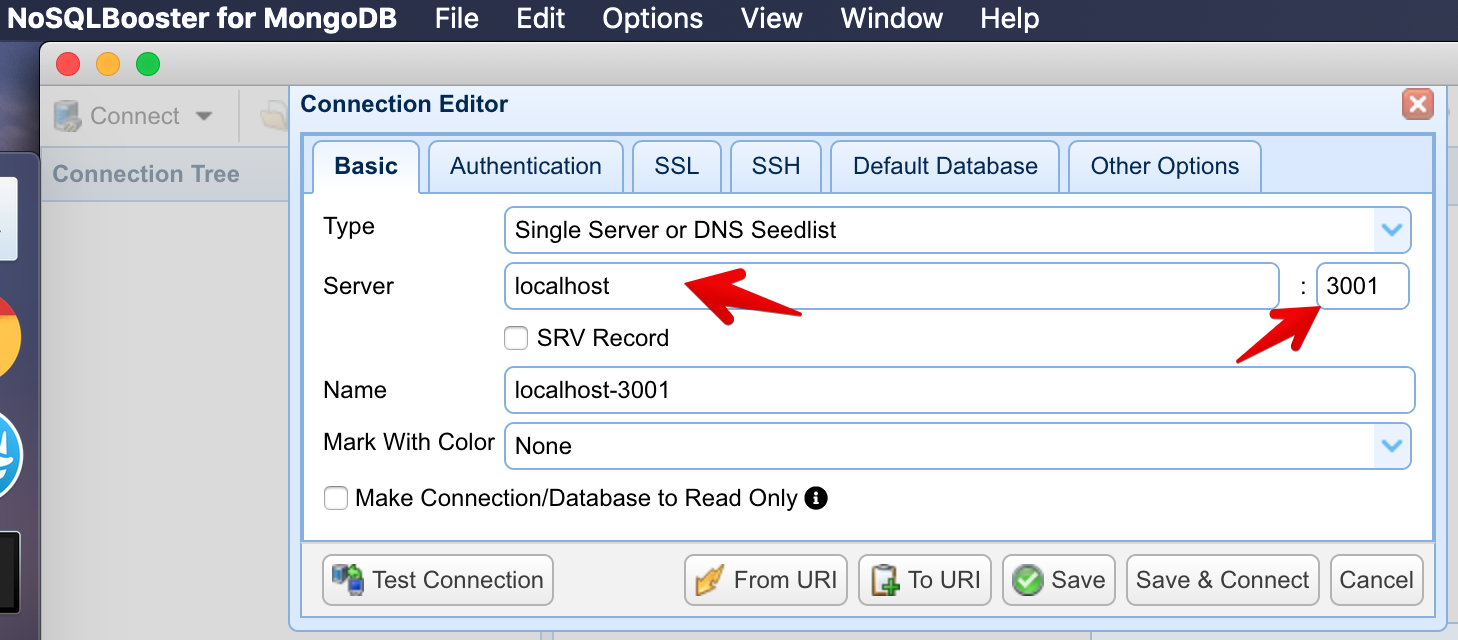
You can connect to your MongoDB running meteor mongo in the terminal from your app folder or using a Mongo UI client, like NoSQLBooster. Your embedded MongoDB is running in port 3001.
See how to connect:
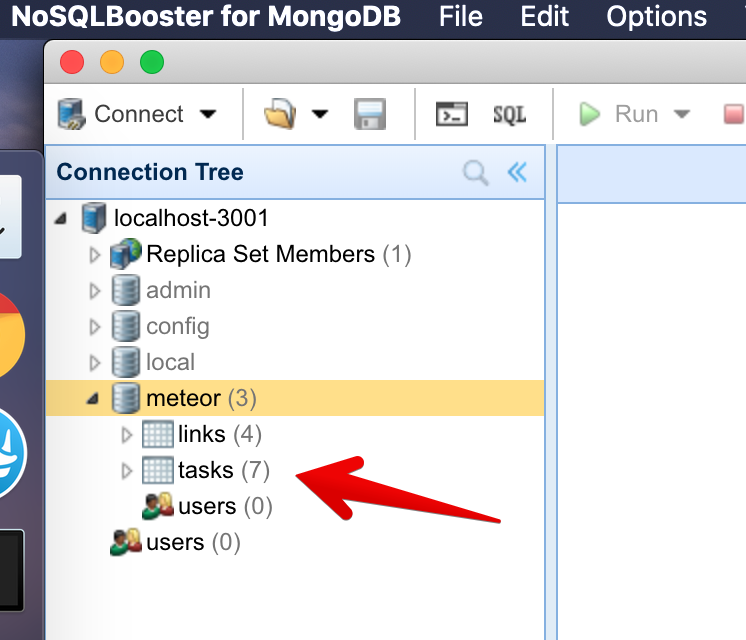
See your database:
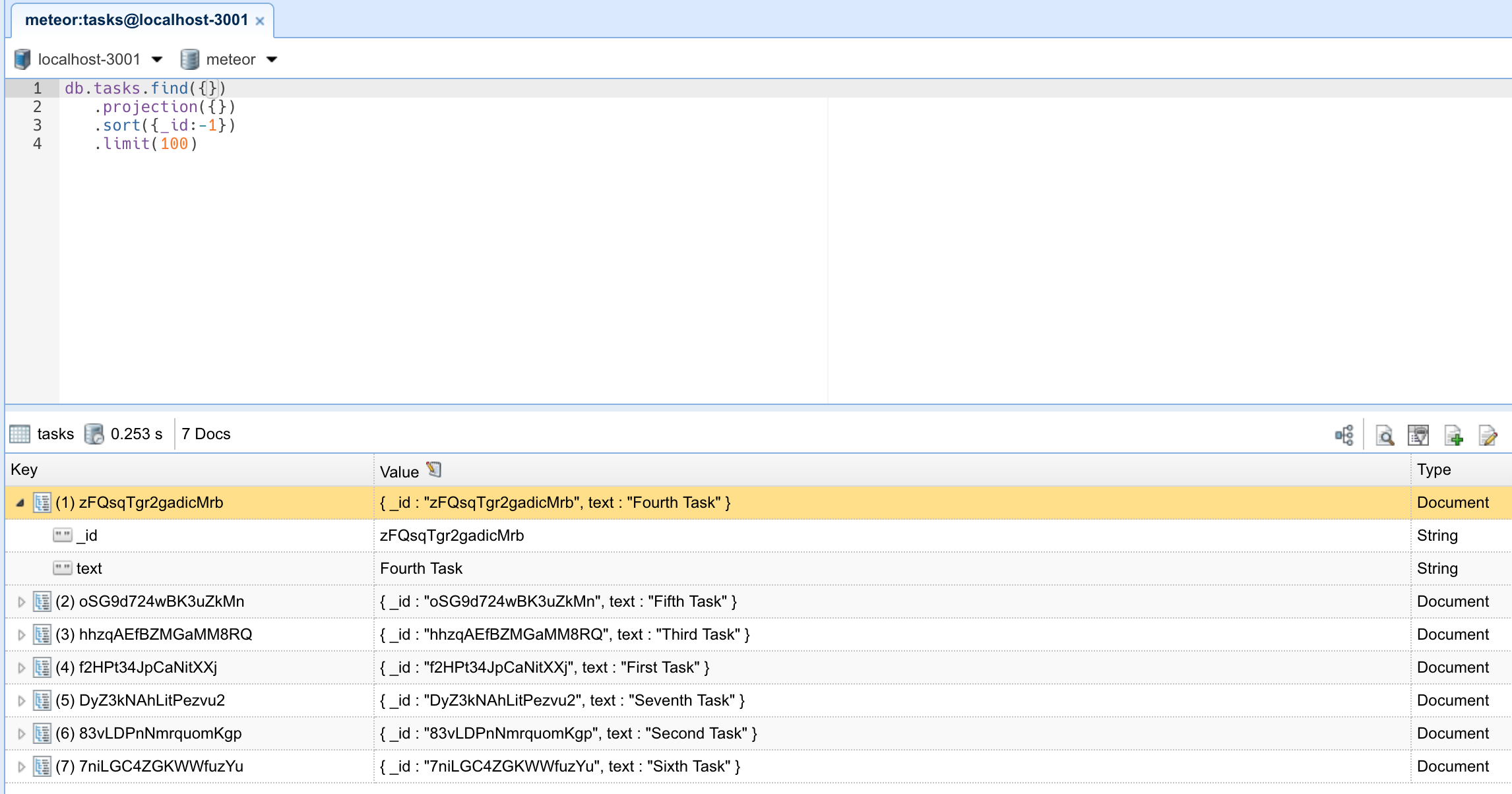
You can double-click your collection to see the documents stored on it:
In the next step, we are going to create tasks using a form.